2. A first screen
A bike comes in through the door and the shop writes down whose it is and what kind of bike. This page builds that form with the mouse, from the title of the last page.
Adding a face
Add puts the new face in a place that depends on the chosen face:
when the chosen face holds others (a view, a form, a panel, a row, a column, a grid, a screen, a tab…), the new face goes inside it, last;
otherwise it goes right after the chosen face, beside it;
with nothing chosen, it goes last in the file’s first view.
The face added is then the chosen one, so what you do next is about it.
Click view in the structure.
Click Add. Its menu has a group for each kind of face: Layout, Text, Input, Choice, Data, Action and Media. Point at Layout:
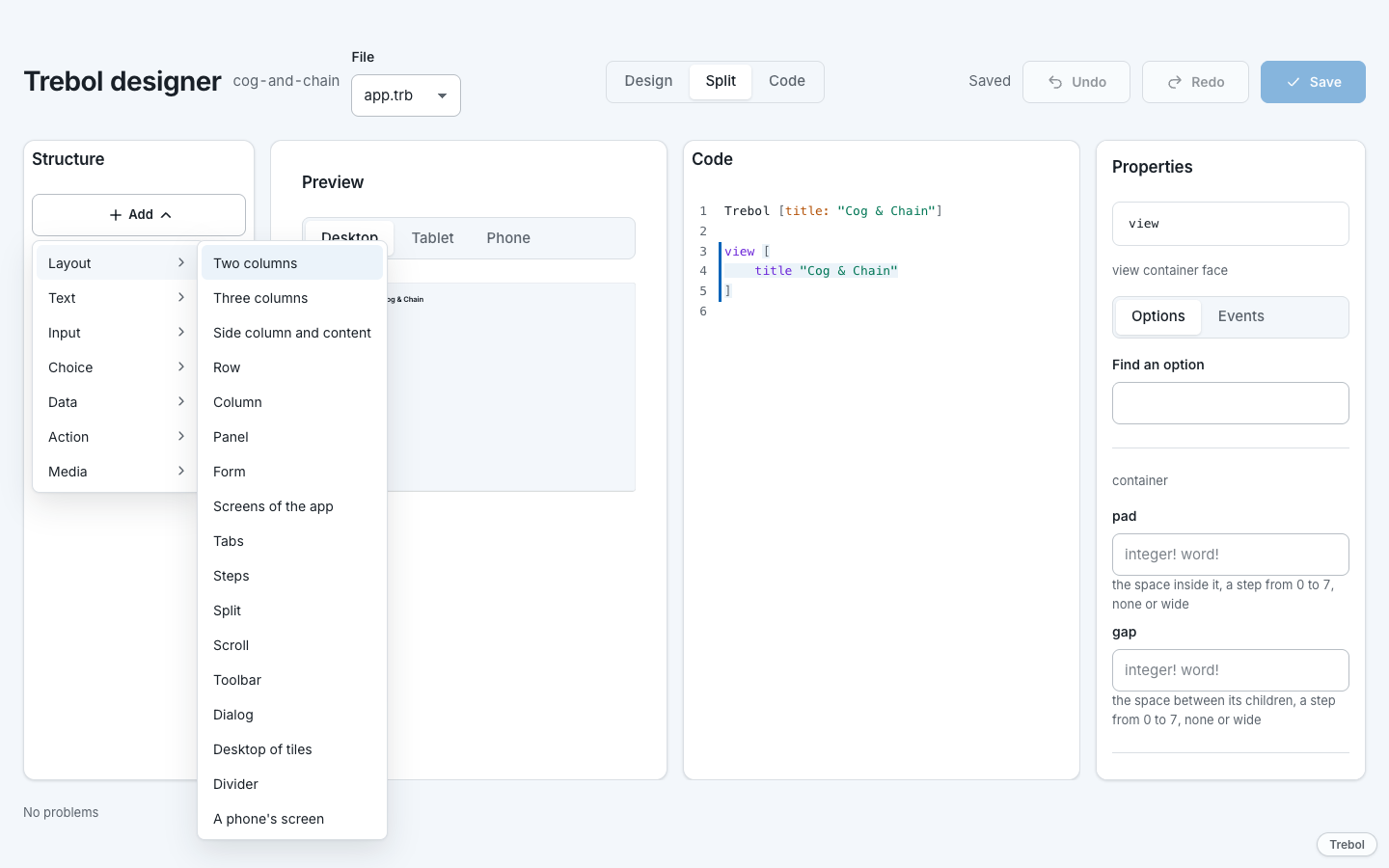
Click Form. A
formcomes into the structure, inside the view and after the title, and it is chosen.With the form chosen, click Add, Input, Field. The field goes inside the form.
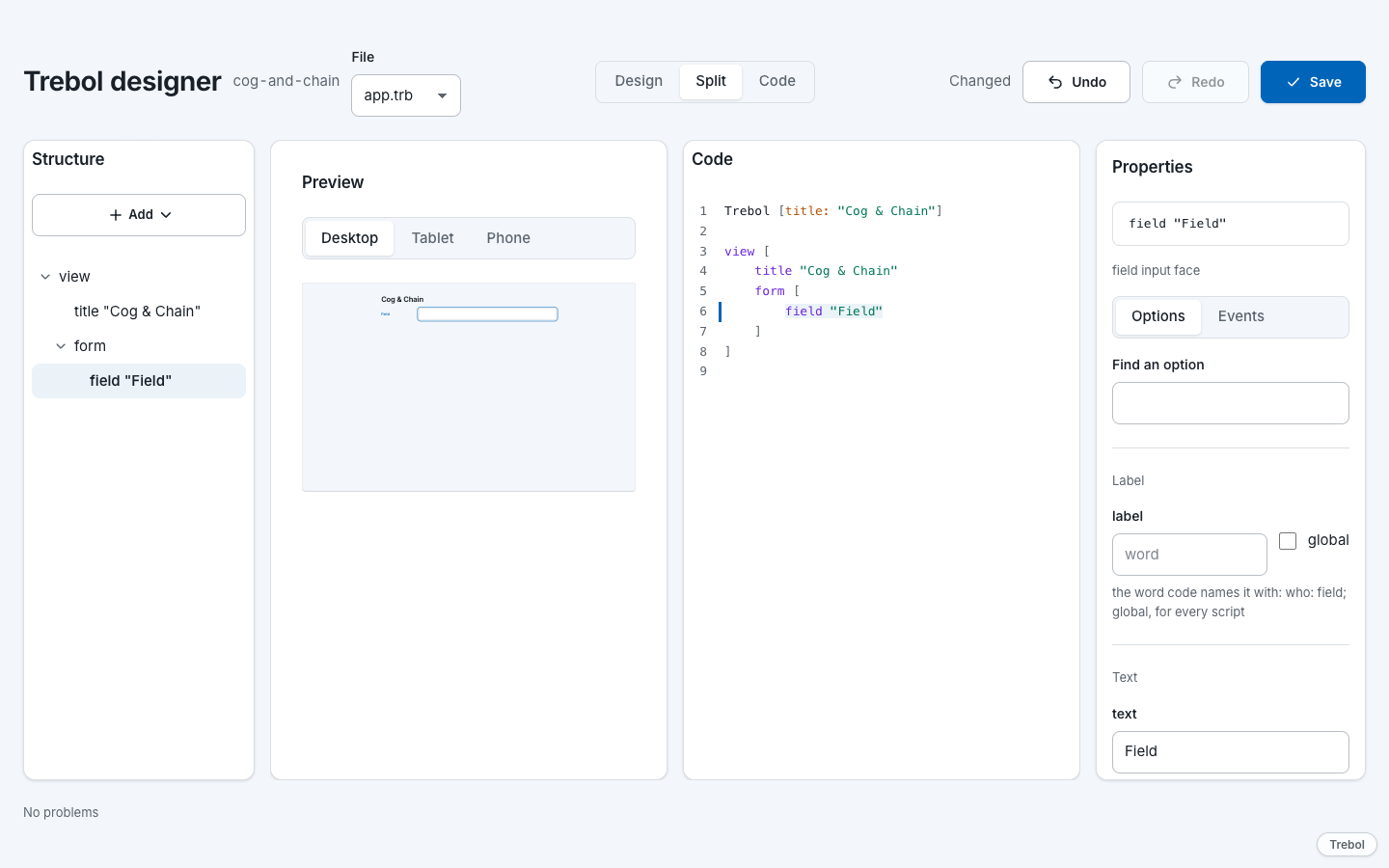
The code has followed:
view [
    title "Cog & Chain"
    form [
        field "Field"
    ]
]
indented as the rest of the file. Whatever you do with the mouse changes the code this way, and only where it has to.
The customer
With the field chosen, find text in the properties and type Customer: it is the field’s label. Then find
the option name, among those of input, and type customer: it is the key of the field’s value when the
form gives its values. A bike is never booked in for nobody, so tick required, a few options further down.
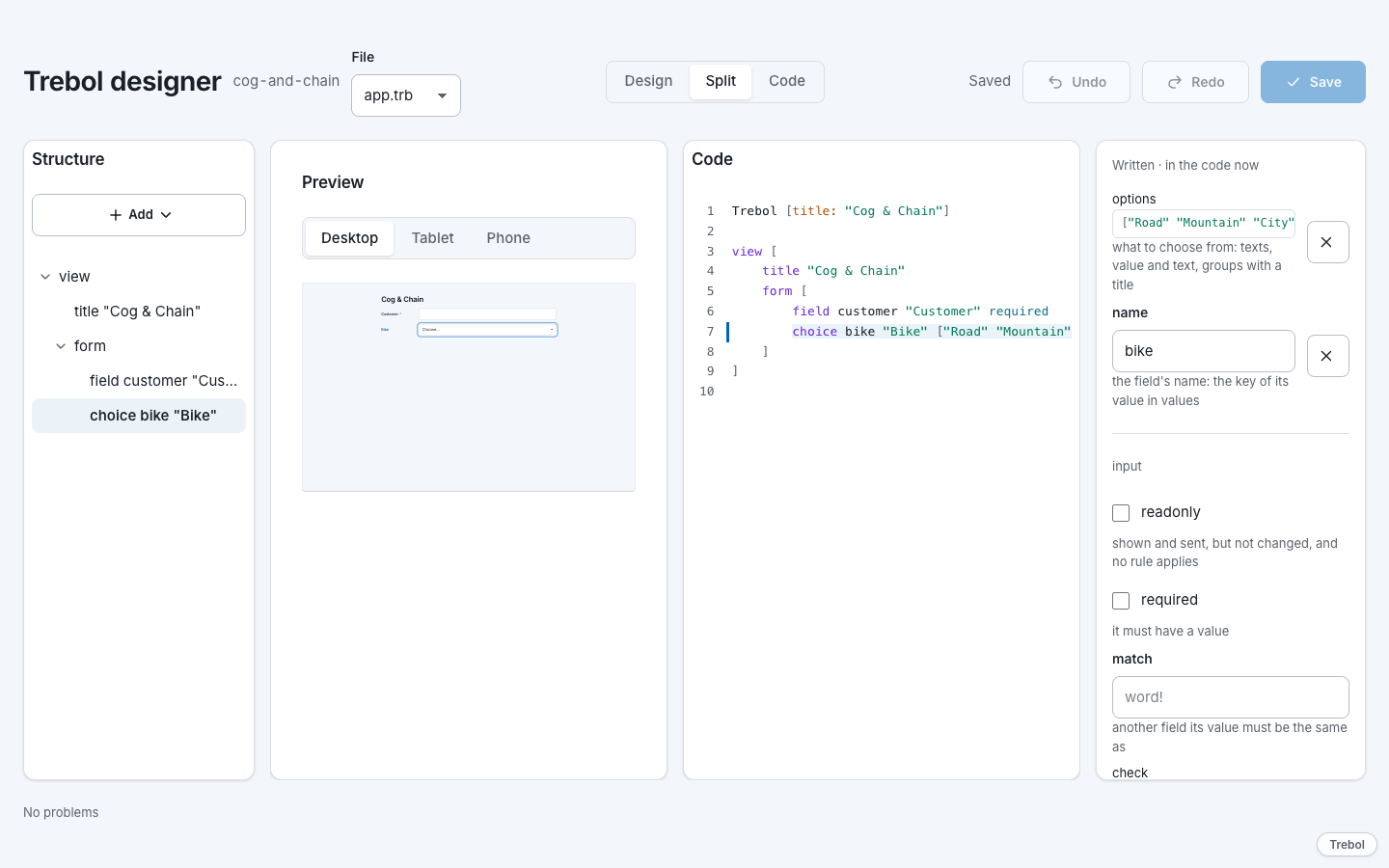
The code reads field customer "Customer" required, and the preview marks the label with a star.
The bike
The field holds no faces, so a face added now goes after it, still in the form.
Add, Choice, Choice. A
choicecomes in with two made-up options.Type
Bikein text andbikein name.Its options are a block, so the properties show it in a small code box, options. Write the kinds of bike in it:
["Road" "Mountain" "City" "Child's"].
Moving and deleting
Drag a row of the structure to move its face. Dropped between two rows, it goes there, in whatever box those rows are in; dropped on the middle of a box’s row, it goes into that box, last.
Up and Down, at the bottom of the properties, move it one place at a time. Next to a box they take it in: Down makes it the first face of the box below, Up the last of the box above. At the edge of its box they take it out: Down on the last face puts it right after its box, Up on the first right before.
Delete takes the chosen face out, with every face inside it.
A box moves with every face inside it, and its lines are indented as the place it goes. The view, a screen, a tab and a step are never moved this way: the view holds the rest, and a screen, a tab or a step stays in the face it belongs to. A face never goes into itself.
A face that moves takes its comment with it, and one that goes takes its line.
On a phone
Choose Design at the top, so the preview has the whole middle:
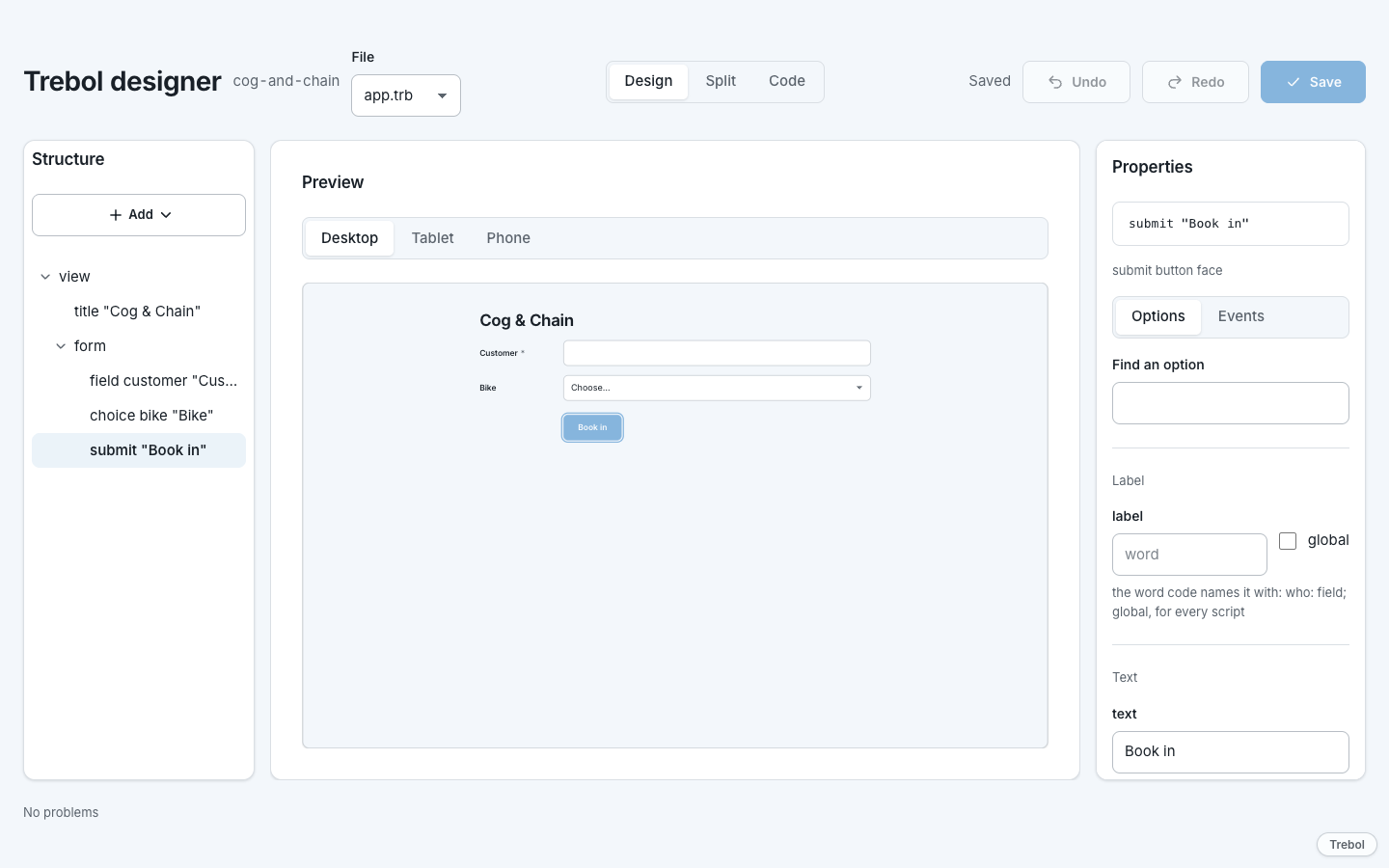
and Phone above the preview. The form lays itself out again for the narrow screen, each label over its field and the button as wide as the screen:
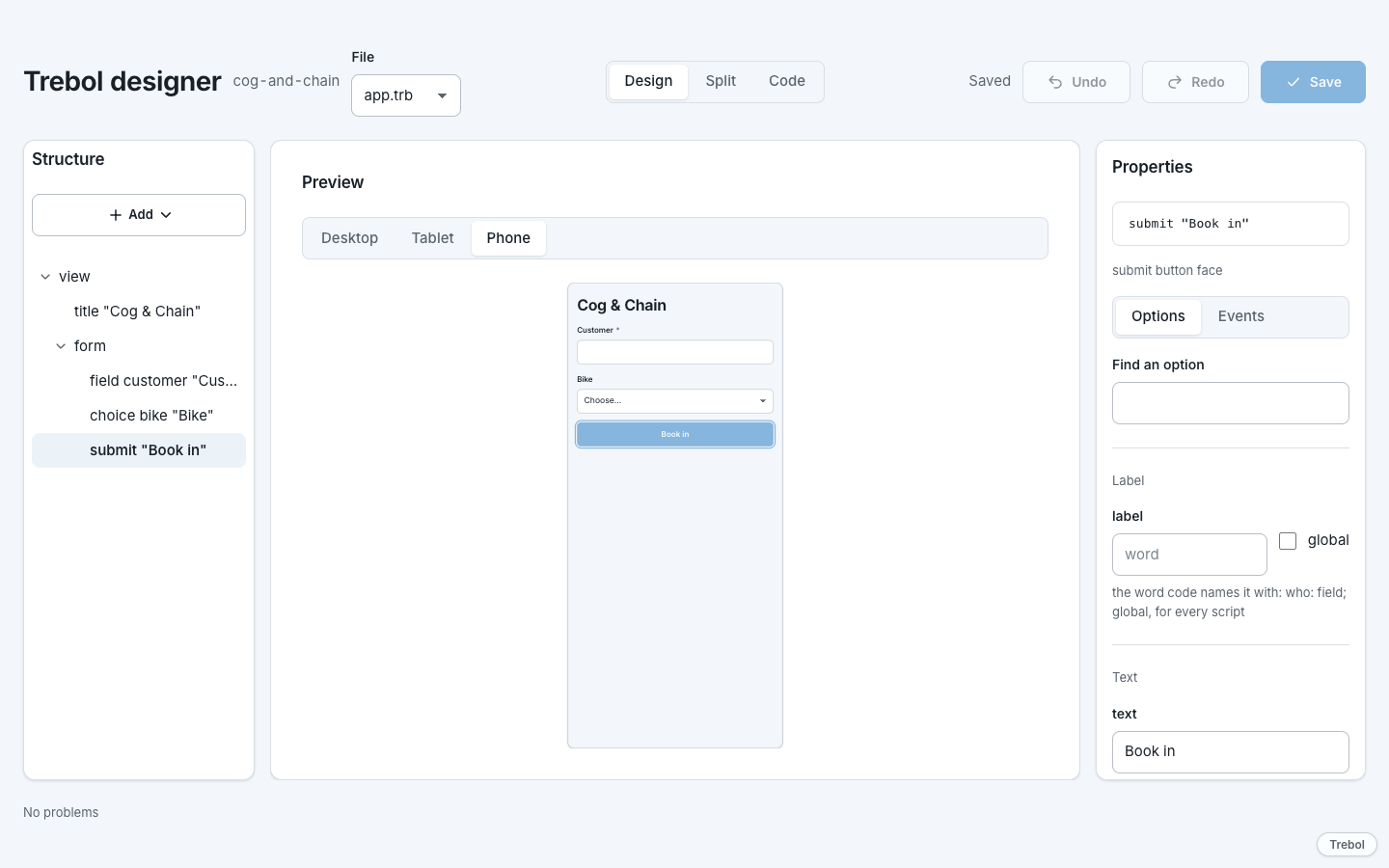
Back in Split and Desktop, click Save: the file is written and Changed turns to Saved. Choosing another file while this one has changes asks first whether to leave them.
What’s next
The next page goes through the properties: the rules a field keeps, the word code knows a face by, and how to find an option among many.