6. Styles of your own
The last page of the second tutorial made styles of the shop’s own with stylize: a muted note, a big button.
The designer reads the styles a file defines and offers them in the Add menu, beside Trebol’s.
The styles in the file
Write them in the code, between the header and the view:
stylize [
    big: button [size: 'large]
    note: text [role: 'muted]
]
The code colours big and note as it colours Trebol’s own styles, and the designer knows them as it knows
those.
Adding one
Choose the title of the view and click Add. At the end of the menu is a new group, This file, with every style the file defines:
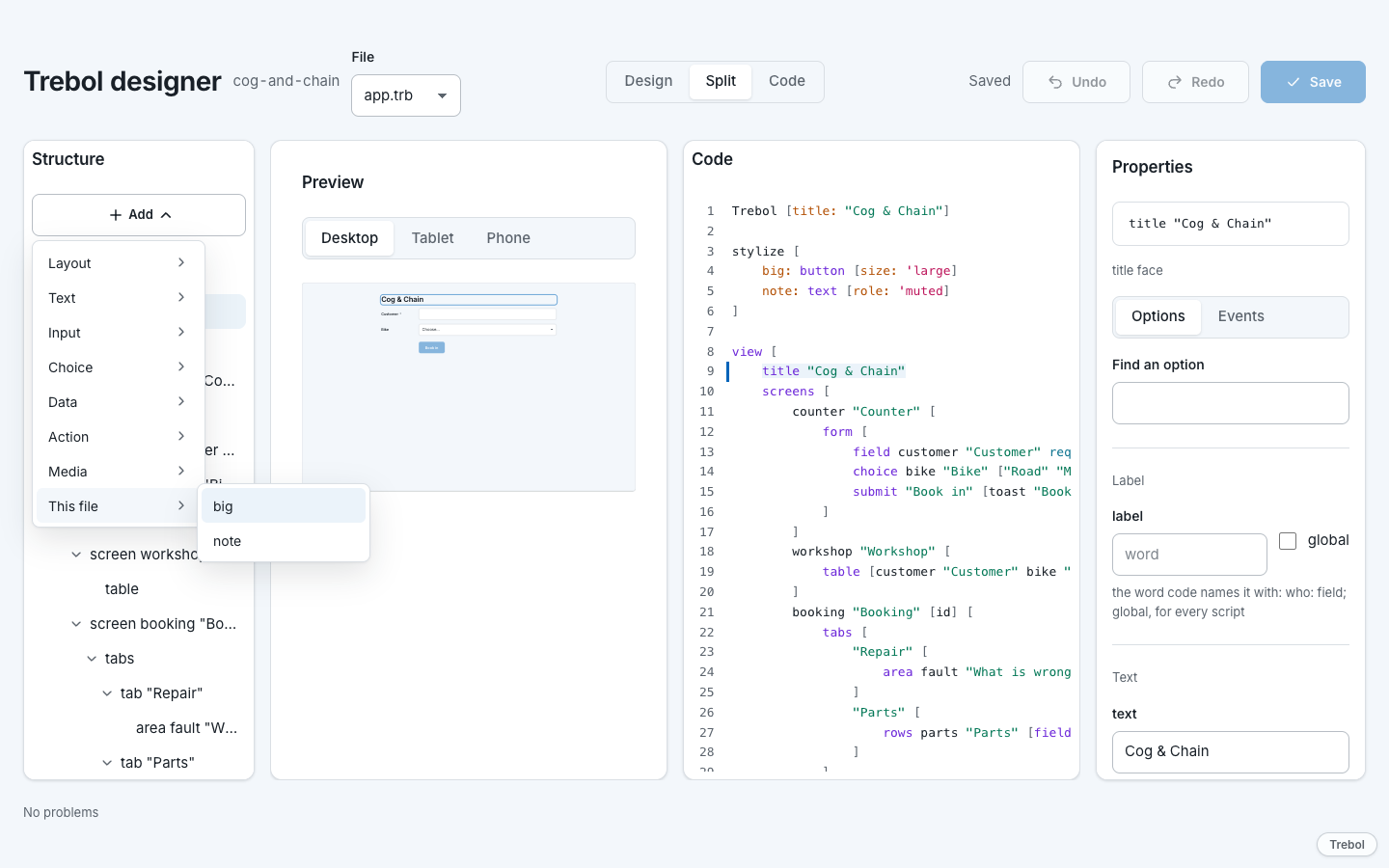
Click note. It goes after the title, chosen: type Bicycle repairs, done right. in its text. Its
properties are those of the style it is made from: the panel says note text face, and its options come in a
section for each.
Trebol [title: "Cog & Chain"]

stylize [
    big: button [size: 'large]
    note: text [role: 'muted]
]

view [
    title "Cog & Chain"
    note "Bicycle repairs, done right."
]
A style made from one that holds faces, a panel, a row, a column, comes in with an empty block, ready for
the faces you put in it. One made of its own faces, with a layout:, comes in with a block only when that layout
says slot, where the faces you put in it go; without slot it holds just its own.
Rules of the file
A file may add words of its own to the dialect with rule, as the forms page of the second tutorial does with
frame-number. The designer runs the file’s rules as it runs its styles, so the faces that use them look as they will,
and the options of a face list them with a box to tick each on or off.
What’s next
The last page is about working in the code beside the design: what the designer keeps, the problems it points out, and saving.